Beacon
A digital literacy platform that helps older adults learn everyday online skills, stay safe from scams, and ask for help without feeling embarrassed.
View Prototype
Year
2025–2026
Platform
Desktop
Role
UX Designer

The Problem
Scams, pop-ups, and constant updates make it easy to feel lost.
One confusing moment is often enough to make someone give up.
Hard to Spot a Scam
Many older adults can't tell a real alert from a fake one.
Lost After Every Update
When an app or website updates and things move around, people think they broke something.
Helpers on Call
The people they lean on end up answering tech questions while juggling work and school.
The Solution

Lessons Matched to Their Level
A few simple questions place each person at a starting level that fits their comfort with technology.

Practice That Builds Confidence
Short lessons ask real-life questions, like which password is safest, and explain every answer.

Ask Anything, Anytime
Beacon's AI assistant answers questions by typing or talking. It checks if a message is safe, explains pop-ups, rewrites confusing text, and shows people how to do things on their own, like taking a screenshot.

Help From Someone They Trust
When people want a person instead of AI, they can message or call a helper or reach the Beacon team.
Background
English isn't my parents' first language. Growing up, I helped them fill out forms, read documents, and figure out new technology. Beacon started as a tool for both non-English speakers and older adults. In my research, the biggest barrier older adults faced was confidence, so I focused Beacon there. A language option is still one of my next steps.
I handled the research, design, and testing for Beacon on my own. I was designing for two people at once: the older adult trying to stay independent and the person they lean on when something goes wrong.
One caregiver described what happens when her mom sees something confusing online:
"She won't even try, she just freezes."
Interview participant – caregiver for her parents
Research
I compared 3 tools built for older adults, then interviewed older adults and the people who help them.
Competitive Analysis



I compared Candoo Tech, GrandPad, and GetSetUp.
•
What They Do Well: Candoo Tech offers one-on-one tech training. GrandPad keeps things simple with large buttons and only trusted contacts. GetSetUp's classes are taught by older adults, which builds trust.
•
What They Miss: Help isn't there in the moment. Candoo Tech has no live chat, GetSetUp runs on scheduled Zoom classes, and GrandPad only works on its own tablet.
•
Where Beacon Fits: Beacon pairs step-by-step lessons with quick ways to reach someone they trust.
•
Who I Talked To: 3 older adults (ages 55 to 82) and 3 caregivers (ages 24 to 33) who often help with tech.
•
How I Sorted It: I grouped my notes into patterns around confidence, safety, and asking for help online.
What I Found

•
Confidence, Not Skill: One confusing screen or pop-up was often enough to make someone stop trying.
•
Real or Fake?: Older adults couldn't tell real alerts from scams. One had her email hacked and now keeps a separate email just for bills.
•
Updates Feel Like Starting Over: When an update moved things around, people thought they'd broken something. "I just figured it out and now it's different again."
•
Helpers on Call: Caregivers were the go-to tech support while juggling work and school.
Define
I turned my interviews into 3 personas. Josie and Maria want to do more online on their own, but one bad experience can shake their confidence. Melanie is the daughter they call when something goes wrong. Beacon needed to build Josie and Maria's confidence so Melanie wouldn't have to step in as often.


How Might We…
Ideation
My first idea was a new browser with a built-in AI guide for things like online forms. But older adults already use browsers they know, and early feedback showed the word "AI" could make people nervous. So Beacon became one place to learn online skills and reach someone they trust, with the AI assistant as one part of it. Four ideas guided every screen:
✓
Every icon has a text label
✓
Each assessment screen asks one question
✓
Help is always one click away
✓
Text stays large, with a zoom button to make it bigger
First Concept Storyboard

Before Beacon became a learning platform, I sorted features for my first idea into 4 groups based on my research:
•
Must-Have: A language toggle, an AI guide for tasks, a way to ask a helper for support, voice support that reads the screen aloud, real-time scam alerts, and a welcome walkthrough.
•
Nice to Have: Saved progress, quick tips while learning, and a review step before submitting important forms.
•
Surprising and Delightful: A practice mode for spotting scams, short lessons right when they're needed, and encouragement when someone hesitates.
•
Can Come Later: Form autofill with helper approval and a weekly browsing report.
Once Beacon shifted to learning, practice became the center of the product.
I ran a card sort with 4 people (ages 24 to 82). All 4 grouped the safety features together, but safety meant something different to each of them, from avoiding scams to having a fallback. When a label was unclear, people guessed. One person put screen sharing under Settings and said:
"If I don't know, I'd probably just go back to Settings."
So I chose menu names that say exactly what's inside, like Lessons and Get Help.

I turned the results into a sitemap for learners and helpers.

Learners answer a few questions to find their starting level. Helpers can also set up an account for the person they help. They pick the learner's starting level, handle the plan and payment, and send an invite.

I laid out each screen in grayscale wireframes before adding any color.

Design
Older adults told me one confusing moment was enough to make them quit. So each screen focuses on one task and makes the next step clear:
•
Simple Starting Questions: The assessment asks one question at a time with large answer buttons.
•
Learn by Answering: Each lesson opens with a question. A right answer moves people forward. A wrong one opens a short explanation and a tip.
•
Zoom When You Need It: A zoom bar at the bottom makes everything bigger at any time.
•
One Stop for Help: The Support Center brings the AI assistant, a trusted helper, and the Beacon team onto one screen.

•
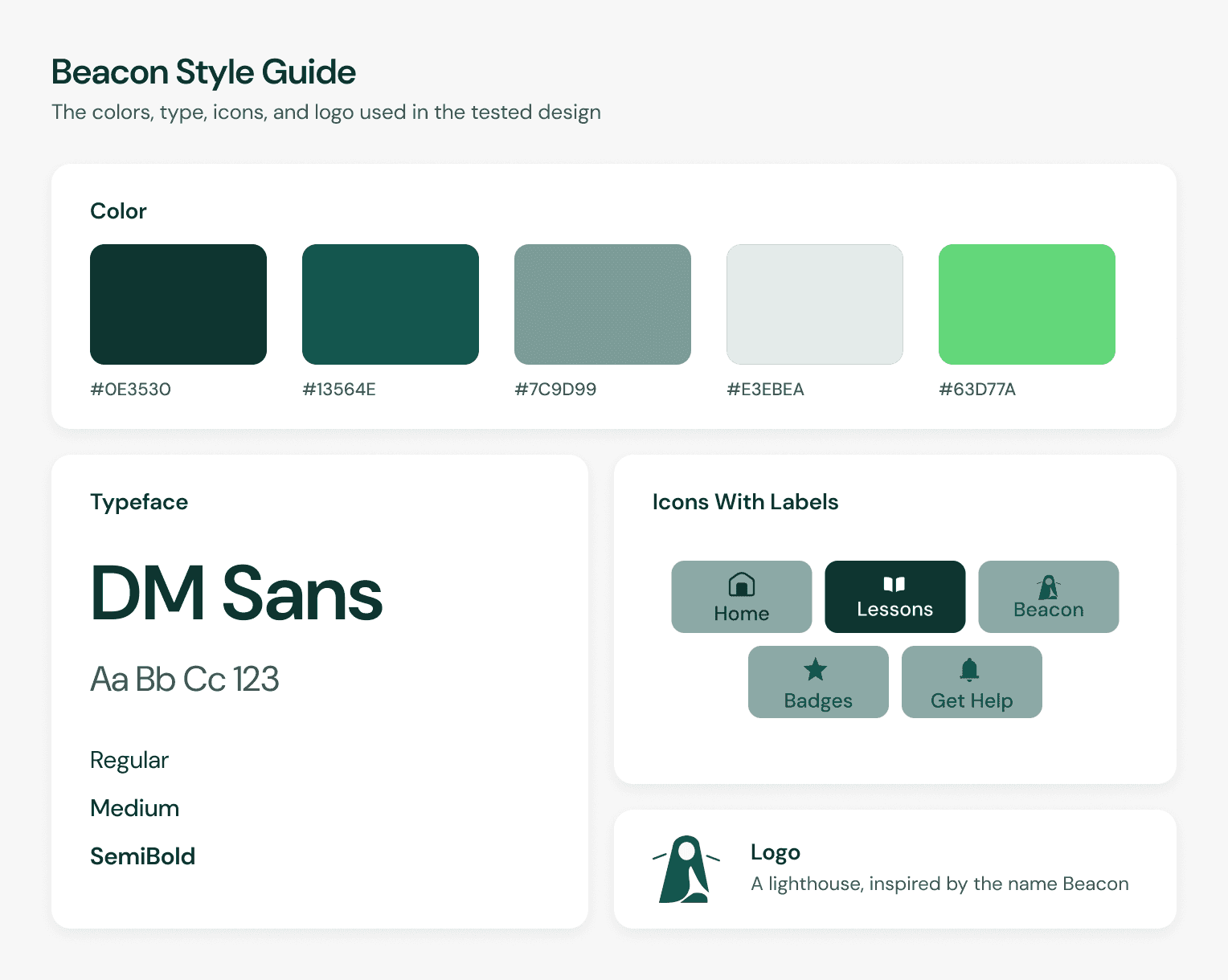
One Typeface: DM Sans keeps every screen simple and easy to read.
•
Soft, Accessible Colors: I tested several palettes and chose calm greens that passed accessibility checks.
•
Matching Icons: I redrew every icon in the same filled, rounded style. Each one has a text label.
•
A Lighthouse Logo: The lighthouse is a simple nod to the name Beacon. I explored an arrow inside a circle before going back to the lighthouse. Early versions looked a little like penguins, so I refined the shape until it read clearly.
Testing & Iterations
I tested a clickable prototype with 3 older adults and 2 helpers, some remotely and some in person, for 20 to 30 minutes each. Testers took the starting assessment, created an account, followed the welcome tour, completed a lesson, used the AI assistant, and messaged a helper.
•
Feedback: The password tips sat at the bottom of the page, so testers missed them until after making a password. They expected a checklist like most sign-up pages have.
•
Final Iteration: A checklist now sits next to the password box. Users can see every rule as they type.
Tested Version

Updated Version

•
Feedback: The welcome tour felt separate. Several testers asked if they were already using Beacon or just watching a demo.
•
Final Iteration: Right after sign-up, a short tour now runs on the actual homepage.
•
Feedback: I had left "AI" out of the labels, but one helper suggested naming it. Seeing the word would help older adults grow comfortable with AI.
•
Final Iteration: "Beacon Companion" became "Beacon AI Assistant," so users know right away when they're talking to AI.
•
Feedback: On the lessons page, testers couldn't always tell which lesson they were on or what to do next.
•
Final Iteration: The next lesson now sits at the top in a dark green card. A Start Lesson button at the bottom gives a second way in.
Tested Version

Updated Version

•
Why: My next steps after testing included refining the colors and bringing more of the Beacon brand into the screens.
•
What Changed: I swapped the teal for a soft purple and blue gradient. This version hasn't been tested with users yet.
Tested Version

Visual Refresh

Results
Testers finished most tasks on their own with few errors and grew more confident as they went. The calm tone, question-based lessons, and safety content stood out most. Testers said the scam examples matched things they had dealt with in real life.
•
For Older Adults: The question-based lessons felt interactive and the gentle feedback boosted their confidence.
•
For Helpers: Testers knew where to find help and liked being able to share a screenshot.
•
On Readability: Testers loved the zoom button. Some also suggested making the smallest text bigger from the start.
Final Prototype

Final Thoughts
Working on Beacon changed how I look at every product. I notice right away when a design assumes everyone already knows how technology works. It also showed me how often new products leave older adults out. I also learned to stop perfecting every screen in Figma before testing. Hearing testers pick apart my design stung at first, but most of their feedback was right. Testing is now the part of the process I look forward to most.
Next Steps
•
A Dashboard for Helpers: Give helpers one place to follow the progress of the person they support.
•
A Built-In Scam Checker: Check emails, texts, and links for scams before someone clicks or replies.
•
A Working Language Toggle: Let people learn in Spanish and other languages. This goes back to why I started Beacon.
•
Test the New Look: Test the gradient design and check text sizes with older adults.
What I'm Most Proud Of: Turning something personal into a real product. Beacon started with me helping my parents online. It grew into a place where older adults can build their skills and ask for help without feeling embarrassed. Testers found it friendly and supportive, not intimidating. That's exactly what I hoped for.